Wednesday, October 11, 2017

Asus zenfone 2 Laser Enter into safe mode and exit procedure

Please find the below steps to enter into safe mode.When power is off:
1.      Long press power key to boot.
2.      When ASUS logo appears, press and hold volume down key till home screen appears
3.      “Safe Mode” reminder appears on the lower-left of home screen

When power is on:
1.      Long press power key.
2.      Tap and hold “Power Off”.

3.      Tap “OK” of Reboot to Safe Mode window.

4.      “Safe mode” reminder appears on the lower-left of home screen.


How to Exit Safe Mode ?
Restarting your device. Your device will now be exit safe mode.

Sunday, October 1, 2017

Asus Zenfone 2 laser ZE550kl volte firmware update from WW-21.40.1220.2087 to WW-21.40.1220.2179

Today i have updated my Asus zenfone 2 laser ze550kl firmware from WW-21.40.1220.2087 to WW-21.40.1220.2179. I saw so many peoples are facing issue while updating from WW-21.40.1220.2087 to WW-21.40.1220.2179 so i thought to share the steps i followed for updating the firmware to latest version.


Steps:
• The batter charging should be above 50%.
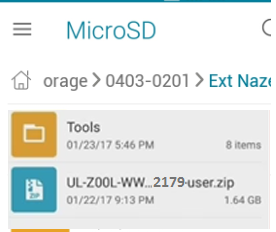
• To install latest firmware two folders required Tools (https://drive.google.com/file/d/0B0aLSwTxUBYETFVvQU1ZUHNFaEE/view ) and Asus zenfone 2 laser firmware (https://www.asus.com/in/Phone/ZenFone-2-Laser-ZE550KL/HelpDesk_Download/). Please find the screens shot below.

• Copy the tools folder to your personal computer as shown in above screen shot.
• Copy the Zenfone 2 laser latest firmware to SD card .

• Enable USB debugging in Zenfone 2 laser. To enable developer options click the Build number for 7 times. To enable debugging options go to settings - > Developer options -> USB Debugging.
• Power off the phone.
• Press power button and volume up button simultaneously to enter into Fast boot mode.
• Attach data cable to Personal computer.
• Open the Tool folder in PC and click the flast-all.bat file this will open command window and run commands and close automatically once the commands executed successfully.
• Remove the data cable connection from the PC.
• Remove the phone battery and wait for 5 sec and insert the batter again.
• Press power button and volume down button simultaneously to enter into recovery mode.
• Select the option Apply update from SD Card. Use volume button to move up and down and the power button to select the option.
• Select the firmware zip file and press power button. Firmware updating will start automatically.
• The above process will take around 10 to 15 minutes to complete the installation.
• After completion of the installation reboot phone and your phone updated to latest firmware.

• Take a back up of your personal data and do a Factory Reset.

Sunday, September 24, 2017

PNR Status Seat availability and Reserved Train Schedule in Indian Rail gov site

The Indian railway has web site http://www.indianrail.gov.in to check for the PNR Status of the Reserved train, Seat Availability, Reserved train schedule and National Train Enquiry System on the above Indian railways website. The above link can be access by any user without logging into system to check for the PNR Status, Seat Availability, Reserved Train Schedule and National Train Enquiry system. 

Thursday, September 21, 2017

Applying Health card in Employ Health Scheme

Andhra Pradesh government is providing health cards to their government employees. The government employees can apply for Health cards by logging into the EHS portal. Please find the video below it will help you to apply for health card in Employ Health Scheme.


NADIKUDI- SRIKALAHASTI Railway Line Route MAP


The above video shows the Nadikudi to Srikaklahasthi railway line that passes through the cities details.

Tuesday, September 12, 2017

Aadhaar link to PAN Number

Aadhaar link to PAN Number

• Open browser and enter the Income tax efiling link https://incometaxindiaefiling.gov.in/
• Click the link Link Aadhaar on the left hand side.
• Fill the details of PAN Number, Aadhaar Number , Name and Captcha Code.
• Click the Link Aadhaar button.

Aadhar linking procedure to Mobile No

To link your Aadhar number with the Mobile number please visit the Mobile operator store.
The linking procedure is simple only document required is Aadhar xerox copy. Once the mobile number enters into the Aadhar linking site you will be getting the OTP number to your mobile number. The OTP number needs to provide to the Operator for further operations. The Aadhar website validates your finger print and authorizes your Aadhar card validation. Once the authorization is done the linking of Aadhar number with mobile number is done.